Ready-made platform
Run it on W2P Solution
A white-label print store with a built-in designer, print pricing rules and a production queue, set up and hosted by the Netbase JSC team.


A WooCommerce store exports a print-ready PDF by generating it on the server after payment. When an order line reaches Processing, a background job rebuilds the file from the saved design or checked upload at the product's trim and bleed, converts colour, runs preflight, stores it privately with a checksum and records it on the order line.
Start readingReviewed by CEO, Netbase JSC · Published 23 Nov 2026 · Updated 23 Nov 2026 · 16 min read

Print-ready PDF export from WooCommerce is the server-side step that turns each paid order line into the production file prepress will accept: the right page size, trim and bleed boxes, converted colour, embedded fonts and a preflight result. WooCommerce stores the order and the customer's choices; it has no built-in notion of a print file, so the export is code the store owns, started by an order event and run away from the checkout request.
This guide covers when the export starts, where it runs, in what order it builds the file, where the file is kept and how it reaches prepress. The platform constraints underneath it - block checkout, order storage, cart item data - are set out on the WooCommerce web-to-print integration page. The output contract the file is built to - PDF/X flavour, colour profiles, preflight classes - is specified as print-ready PDF and prepress automation.
File output is the artwork part of the WooCommerce web-to-print implementation guide; this page expands it and assumes the configuration record and order-status map defined there. The seven checks a print-ready file must pass are covered in what makes a PDF print-ready; this page shows how a WooCommerce store produces that file every time.
A WooCommerce print store receives artwork by one of two routes, and neither delivers the production file as it arrives.
An online designer. The customer approves a browser canvas: RGB, screen resolution, no bleed. The designer should save the design data - objects, positions, fonts, image references - with an identifier on the cart line, and the export lays that data out again at trim plus bleed in the output colour space. A screenshot of the canvas cannot be repaired into a print file. Whether that designer is a packaged plugin or a custom build is compared in WooCommerce product designer plugins vs custom build; either way, the export needs the data, not a picture.
An uploaded file. The customer's PDF is checked on arrival against the product's page size, bleed, resolution and colour space, using rules such as those in designing automated preflight rules. The export still places it on a page with the product's boxes, applies the output intent and records which file version was used.
In both cases the export is deterministic. The same design revision, product rules and output specification produce the same file, which is what makes a disputed order checkable later.
WooCommerce documents eight order statuses: Draft, Pending payment, Processing, On hold, Completed, Failed, Cancelled and Refunded. Only one of them means "paid, now make it".
Hook the change to Processing (the woocommerce_order_status_processing action), not a gateway callback alone: some gateways confirm payment asynchronously, staff may move an order by hand, and the status change is the one signal every route shares. Read the line's configuration record and design identifier through WooCommerce's order item objects, never raw post meta, so the export keeps working whichever order storage mode is active under High-Performance Order Storage.
Building a print PDF is heavy: fonts embedded, images resampled, colour converted through ICC profiles, sometimes dozens of pages. PHP's max_execution_time defaults to 30 seconds, and a status change usually happens inside a web request - a gateway callback or an administrator's click - that should finish in well under a second.
So the status hook only queues work. Action Scheduler, the job queue library WooCommerce itself uses for background work such as webhooks, provides as_enqueue_async_action. With its unique flag set, a second call with the same hook, arguments and group is not scheduled again, which absorbs the duplicate events that order systems produce. Make the arguments the order id, the line item id and the design revision, so a repeat for the same revision is ignored and a genuinely new revision is not.
The job itself must be safe to run twice. Before rendering, it checks whether a file for that order, line and revision already exists with a matching checksum; if so, it records success and stops. A failed render is retried a fixed number of times, then marked failed on the order line with the error, so it appears in a prepress queue instead of a log.
The export always runs the same steps in the same order, and each step can stop it with a reason a person can read.
Order reaches Processing
Design identifier or upload reference on the line
Product and options from the configuration record
Source and geometry
Rendered PDF and the substrate's profile
Converted PDF and the shop's rule set
Passed or warned file
File path, checksum, specification version, result
Stored file and job data
A preflight fail stops at step 6: the order line is marked "held for prepress" with the report attached, and nothing reaches production until a person resolves it. A warning follows the class the shop's rule set gives it. The geometry in step 3 comes from the product rules, not the uploaded file, which is how an A4 file is caught on an A5 product. The box definitions themselves are explained in bleed, trim and TrimBox in exported print files, and the colour decisions in CMYK and spot colour in a web-to-print pipeline.
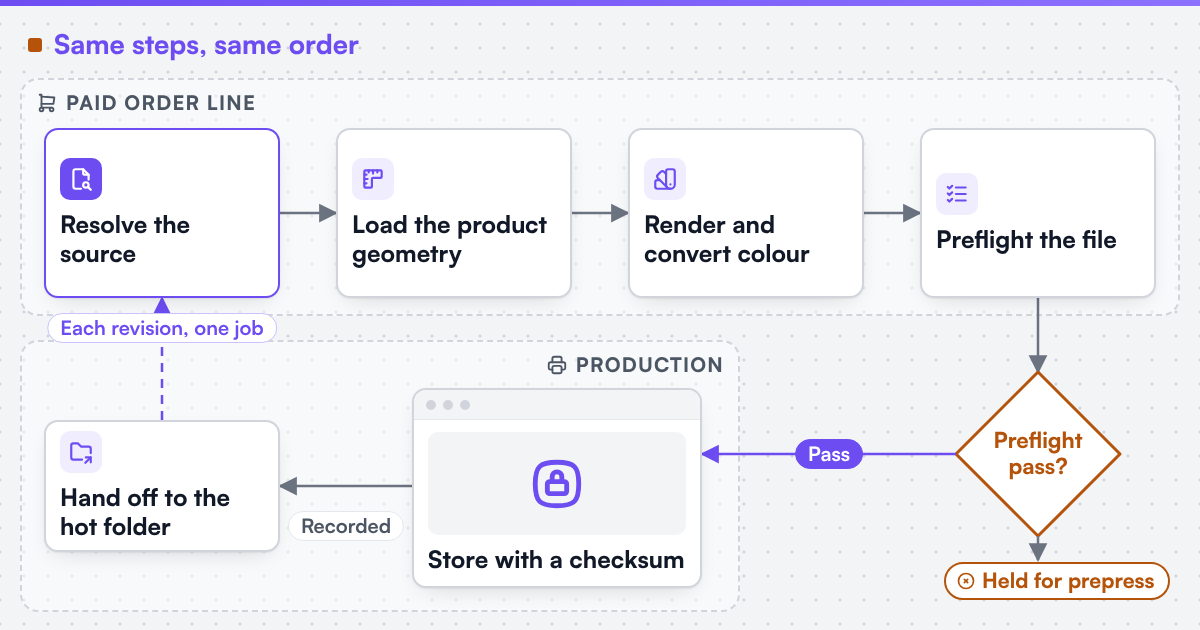 (opens the full-size diagram in a new tab)
Not in the public uploads folder. WordPress's wp_upload_dir() returns both a filesystem path and a public URL for uploads, because files there are served to anyone with the link. Production files belong outside the web root or in private object storage, downloaded by staff through a role-checked route.
The order line then carries the facts about the file. WooCommerce order items store metadata through update_meta_data(), and get_formatted_meta_data() hides keys that start with an underscore by default, so these fields stay out of customer-facing order emails and the order page:
exports/2026/11/wc1042-3611-r1.pdf1bc-silk-v3pass, or warn: image 240 ppi at sizePHP's hash_file('sha256', ...) computes the checksum. Compare it again when the file is copied to the hot folder, and the "wrong file printed" dispute becomes a lookup.
The simplest hand-off is a hot folder for each product family, watched by the RIP or workflow server. The filename carries the job key - order, line and revision - so any sheet traces back to its order. Copy under a temporary name and rename when complete, so a half-written file is never picked up.
Larger shops create the job in their MIS with the file reference, sometimes with a JDF job ticket; that boundary is designed in print MIS and ERP integration. Either way, the checksum travels with the file and a reference is written back to the order line.
Each change to an exported line follows one rule: a new revision, never an overwrite.
Take order 1042, line item 3611: 500 business cards, 85 x 55 mm finished, 3 mm bleed, silk stock, printed both sides, designed in the browser.
pass.wc1042-3611-r1.pdf outside the web root, its checksum and the specification version written to the line.If the customer edits the card before printing starts, the same steps produce wc1042-3611-r2.pdf, and the line shows revision 1 as superseded. A published print-ready PDF output specimen shows what such a specification and file look like.
Run the list on a staging copy, then again after each WooCommerce, plugin or PHP update:
The export stays deterministic; AI can help around it. A preflight report written for operators can become a plain-language draft note for the customer ("the photo on the back will print soft at this size"), or a free-text order note can be read into a draft instruction for prepress. We can build AI-assisted steps into print workflows where a human reviews the result, with accuracy measured on the client's own data before acceptance. A model never changes the file, the boxes or the preflight decision.
Netbase JSC, which operates Web2Print Solutions, has delivered 50+ web-to-print platforms. Netbase JSC maintains reusable web-to-print components - a browser-based online designer, rule-based print pricing templates, print-ready PDF output with CMYK conversion, bleed and trim, storefront connectors for WooCommerce, Shopify, Wix and custom stores, and a photobook and multi-page layout editor - which an engagement may reuse under their own licence terms.
We engineer print output: PDF generation to a client-specified standard, CMYK and spot colour handling, ICC profile selection, bleed and trim geometry, imposition and automated preflight. We can scope and build web-to-print integrations for Shopify, WooCommerce, Magento / Adobe Commerce, BigCommerce, Wix and headless storefronts, and we state each platform's constraints before the work is priced. Client-specific deliverables, access and handover are defined in the engagement contract. Pre-existing software, products, APIs and third-party components remain subject to their respective ownership and licence terms.
A shop that does not want to own a WooCommerce stack has another route. W2P Solution is a white-label web-to-print store platform from Netbase JSC in three editions (Retail, B2B Procurement, Marketplace), hosted and upgraded by Netbase JSC. For every paid W2P Solution order, the store obtains a print-ready PDF for each order line, keeps its own copy with a checksum and trim and bleed boxes, and places the order in a production queue where the operator moves its status and the buyer receives the store's own emails; the print order workflow page shows that queue. The first release of W2P Solution supports flat print products such as cards, flyers and posters; further product types are planned and are not part of the current plans.
To export print-ready files from a WooCommerce store, check the WooCommerce web-to-print integration constraints for your checkout and order storage, then see what print-ready PDF and prepress automation specifies and how the output is accepted by your prepress team. Send a project brief with your WooCommerce version and order storage mode, one product's trim, bleed and page count, one file prepress accepted and one it rejected with the reason, and the folder or system that should receive each file. More technical references are in the guides section.
This guide describes an export structure and the WooCommerce, WordPress, Action Scheduler and PHP documentation it relies on, read on 23 November 2026; it does not recommend a specific PDF library or plugin. Box values in the worked example are illustrative geometry, not a shop's specification. Where a technical standard is named, it describes the output specification an engagement produces to, not a credential Web2Print Solutions holds. This site publishes no prices, rates, day rates or payment terms. Web2Print Solutions is the web-to-print engineering service of Netbase JSC. Delivery records cited on this site belong to Netbase JSC; where no delivered example of a capability is published, the page says so rather than implying a record. No delivered WooCommerce PDF export pipeline is published on this site yet.
No. Invoice plugins lay out order data for people to read. A print file needs the product's boxes, output colour space, embedded fonts and preflight, built from the design data.
No. Many carts never pay, and the design can still change. Generate after the order reaches Processing; the designer can show a soft proof before that without creating the production file.
Outside the public uploads directory, in a private folder or private object storage, with the path, checksum and revision on the order line and downloads limited to staff roles.
Yes. A product with a cover and an inner block, or a separate die line, produces one file for each component, each with its own checksum, all keyed to the same order line and revision.
Ready-made platform
A white-label print store with a built-in designer, print pricing rules and a production queue, set up and hosted by the Netbase JSC team.
Commissioned build
When the workflow needs rules, integrations or a configurator a standard edition does not cover, the Netbase engineering team scopes and builds it.
 Guide
Automated preflight: designing pass and fail rules for print files
 Guide
Bleed, trim and TrimBox: setting up PDF page boxes for print
 Guide
CMYK and spot colour in a web-to-print pipeline
 Guide
What makes a PDF print-ready, and why yours was rejected
 Service
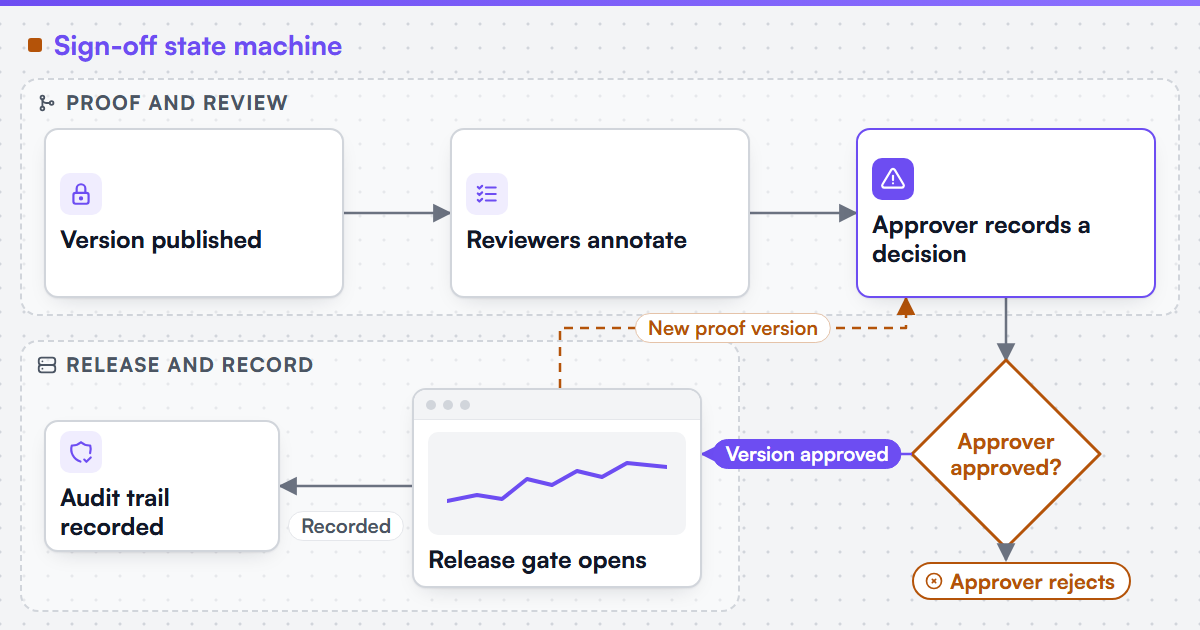
Online proofing and artwork approval workflow
 Solution
Artwork rejections and manual prepress rework
Tell us about one product you want to sell online. A senior engineer reads every brief and replies in writing.
I recently had the pleasure of working with NETBASE for a customization project on my WordPress website. From start to finish, the experience was exceptional, and I am thrilled to share my positive review about their outstanding services.
 Jun
Customer ·
 United States
