
Canvas prints with 3D edge preview
A canvas configurator decides what shows on the wrapped edge before the file is built. Web2Print Solutions engineers the gallery wrap, mirror wrap and colour-edge options, the extra canvas each wrap needs from the frame depth, a browser 3D edge preview, and resolution warnings for oversized low-resolution images. Wall art and posters share the same geometry.
Start a project brief Explore servicesReviewed by CEO, Netbase JSC · Published 30 Sep 2026 · Updated 30 Sep 2026

What does a canvas configurator have to do?
A stretched canvas print is not a flat rectangle; the printed material continues around the wooden stretcher bar and onto its sides, so the file has to contain more image than the screen shows as "the picture". A configurator that shows only the flat front and builds the wrap in prepress is why wrapped edges arrive with part of a face, a logo or a caption cut off - whoever builds the file cannot know what the customer intended for the sides, so they guess, or crop conservatively. Getting this right online means deciding the wrap style, calculating the extra canvas it needs, and showing the finished object from an angle before checkout, not after production. This page is one of the print-specific product pages in the web-to-print by print product family, and it also covers wall art and poster prints, which share the same wrap and bleed geometry.
Gallery wrap, mirror wrap or colour edge: how does the choice change the file?
| Wrap style | What shows on the side | Best fit | What the file needs |
|---|---|---|---|
| Gallery wrap (image wrap) | The photo's own edge pixels, stretched around the side | Open space near the border - sky, water, plain background | Image extended by the wrap allowance, no extra artwork |
| Mirror wrap | The image's outer edge, reflected outward | Subjects filling the frame - portraits, close crops | Wrap area generated by mirroring outer pixels, not original content |
| Colour edge | A flat colour, sampled or chosen | Any image where the two above lose content | Solid colour fill on the wrap area; front image untouched |
The configurator applies whichever rule the customer picks to the wrap area only - the front-facing image is never cropped by the choice, only extended.
How much extra canvas does a wrap need?
The wrap allowance depends on the stretcher bar's depth and how much extra material folds and staples to the back of the frame. The general form is:
Extra canvas per edge = frame depth + fold allowance
Worked example (illustrative only). Assume a stretcher bar depth of 38 mm (a common "gallery depth" bar) and a fold allowance of 20 mm for the material stapled to the back of the frame. Extra per edge = 38 mm + 20 mm = 58 mm. For an image printed at 600 mm × 400 mm, the total canvas size becomes 600 mm + (2 × 58 mm) = 716 mm wide by 400 mm + (2 × 58 mm) = 516 mm high. The depth and allowance here are assumed for illustration; a real configurator reads them from the frame stock a shop actually stocks and shows the resulting total canvas size, not just the visible front size.
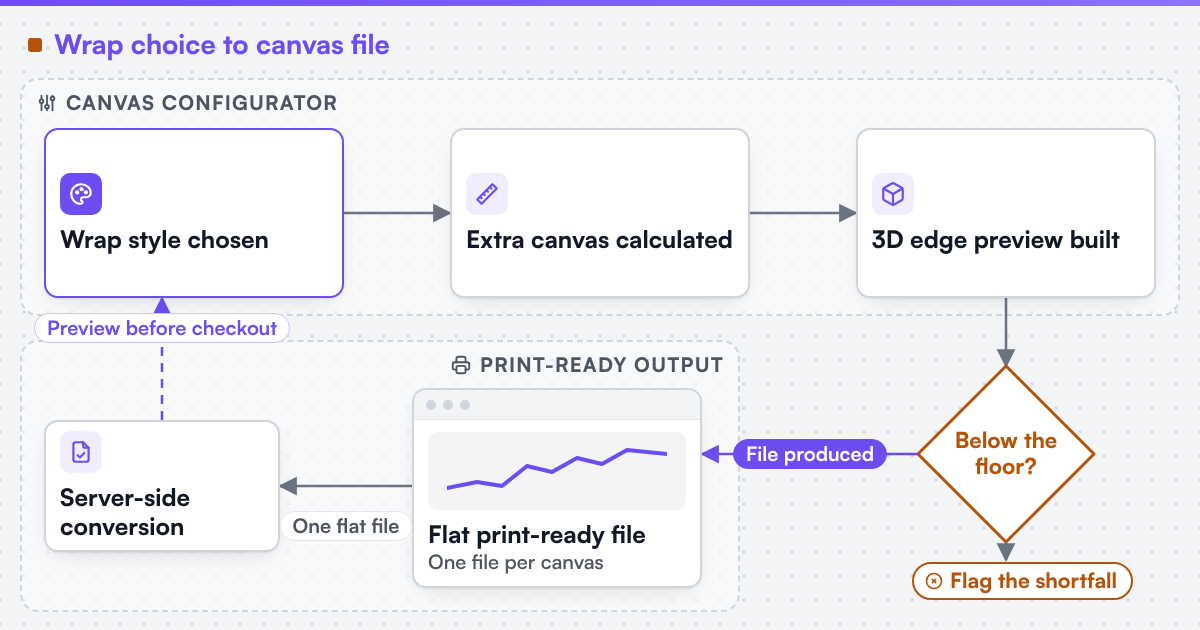 (opens the full-size diagram in a new tab)
How does a 3D edge preview work in the browser?
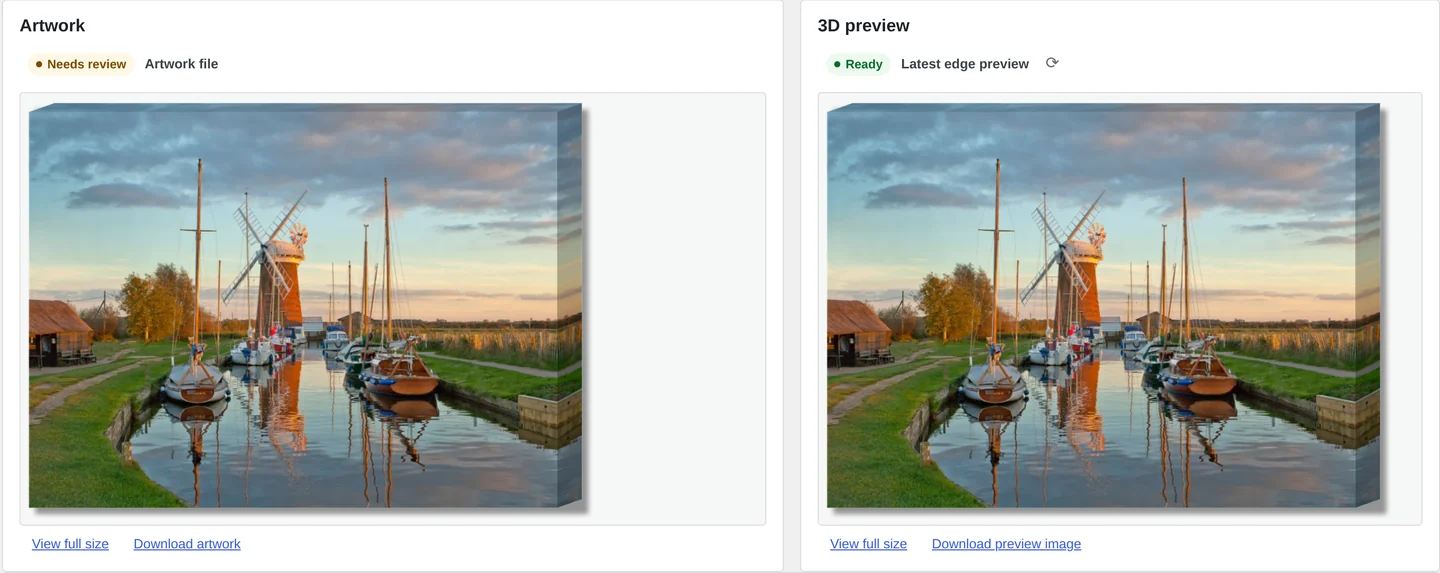
A 3D edge preview renders the canvas as a box: a front face showing the flat image, and up to four side faces showing whatever the chosen wrap style produced, mapped as textures. The browser can build this with CSS 3D transforms - giving perspective to flat, textured panels arranged as a box - or with WebGL for a continuous rotate-and-drag view. Either approach needs the same inputs: the front image, the generated wrap-area image per side, and the frame depth setting each side panel's width. The preview should let the customer see at least one corner, since that is what reveals whether part of the image got pulled around the edge.
Artwork and edge preview kept together on the order record.
When does low resolution break a large canvas, and how do you warn the customer?
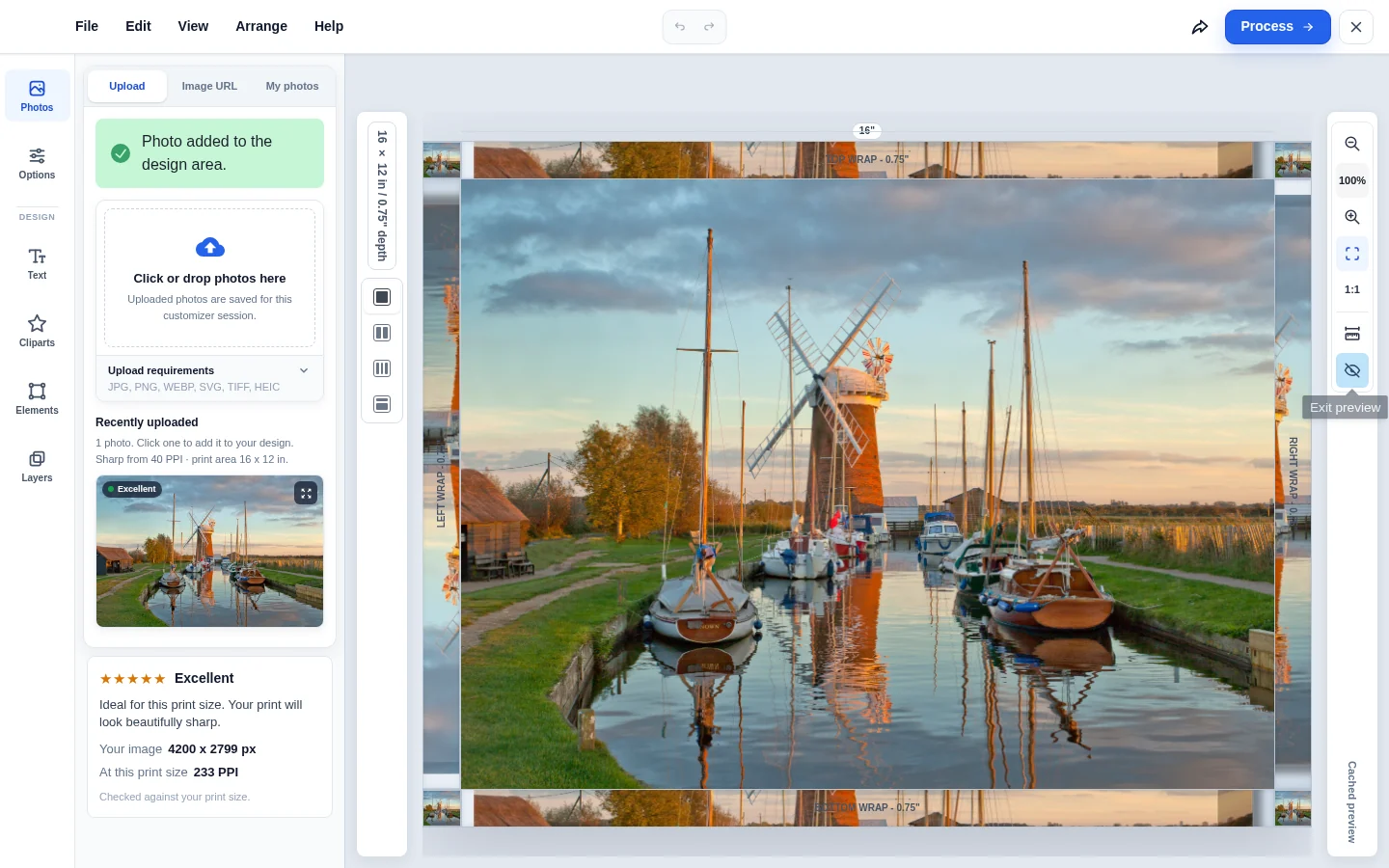
Effective print resolution is the image's pixel dimensions divided by its printed size. A canvas is usually viewed from further away than a photo print, so its acceptable resolution is lower - but it still has a floor.
| Print size (approximate) | Typical viewing distance | Resolution below which the editor should warn |
|---|---|---|
| Up to 300 × 400 mm | Close, under 1 m | 150 PPI |
| 400 × 600 mm to 900 × 600 mm | Room distance, 1-2 m | 100 PPI |
| Over 900 mm on the long edge | Wall distance, 2 m+ | 70-80 PPI |
The configurator should calculate the uploaded image's effective PPI at the chosen print size, including the wrap area if using an image or mirror wrap, and flag the shortfall rather than silently upscale, since upscaling changes what was captured without saying so.
Do wall art and poster prints belong on this page?
Yes. A flat, unframed poster print and an unwrapped wall art panel use the same front-image geometry and resolution-warning logic as a canvas, without the wrap allowance, since there is no wrap. Framed wall art reintroduces a version of the wrap or mat calculation depending on the frame style. Splitting these into a separate page would duplicate the bleed and resolution mechanics that already belong here.
What print-ready files does the pipeline need to produce?
The output is a single print-ready file per canvas: the front image plus the wrap-area image on every side that needs it, assembled into one flat artwork at the total canvas size, with no wrap seams showing where front and side meet. We engineer print output: PDF generation to a client-specified standard, CMYK and spot colour handling, ICC profile selection, bleed and trim geometry, imposition and automated preflight. As with any browser-based design step, the exported file needs a server-side render and colour conversion rather than a client-side screenshot, since the browser draws in RGB and the canvas needs a converted, print-ready colour space. Where a technical output specification such as PDF/X is named, it describes the file target an engagement is built to produce, not a credential Web2Print Solutions holds. This output step is print-ready PDF and prepress automation; the option logic in front of it is print product configurator engineering. The RGB-to-print gap is explained in your design editor exports RGB, not CMYK. Netbase JSC, which operates Web2Print Solutions, has delivered 50+ web-to-print platforms, and reusable canvas designer components with wrap settings and 3D edge preview are available under their own licence terms.
Scope a canvas build in a project brief: the frame depths and wrap styles you offer, your maximum print size, and the resolution floor you want enforced.
Key takeaways
- Wrap style - gallery, mirror or colour edge - decides what fills the side panels; the front image is never cropped by the choice, only extended.
- Extra canvas per edge follows frame depth + fold allowance; the configurator should show the total canvas size, not just the visible front size.
- A 3D edge preview, built with CSS 3D transforms or WebGL, should let the customer see at least one corner, since corners are where wrap problems show up.
- Acceptable resolution is lower for a canvas than for a close-viewed print, but it still has a floor checked at the chosen print size.
- Wall art and poster prints reuse this page's geometry rather than needing a separate one.
Discuss your web-to-print project
Frequently asked questions
A browser preview can show the object's shape, wrap and roughly how colours will look, but a screen cannot reproduce a print's exact colour, so the preview should be labelled an approximation, not a colour-accurate proof.
A common approach is to mirror or extend the nearest in-bounds pixels rather than reject the order outright, while still warning if the front-facing area itself falls under the resolution floor.
Usually, since it keeps the whole subject on the front face rather than stretching part of it around the side, but the right choice depends on how close the subject sits to the image's edge, which is why the configurator should let the customer preview both.
References (4)
- W3C, CSS Transforms Level 2 (3D transforms, perspective), accessed 2026-09-30.
- MDN Web Docs, Using CSS transforms, accessed 2026-09-30.
- International Color Consortium, ICC profiles, accessed 2026-09-30.
- Ghent Workgroup, PDF/X workflow, accessed 2026-09-30.